How to Install NAPLAN Locked Down Browser on Windows
Note: NAPLAN locked down browser requires a minimum version of Windows 10 21H2 or later.
You can check your version of Windows by following the instructions
here.
-
Step 1 Download the NAPLAN locked down browser here
-
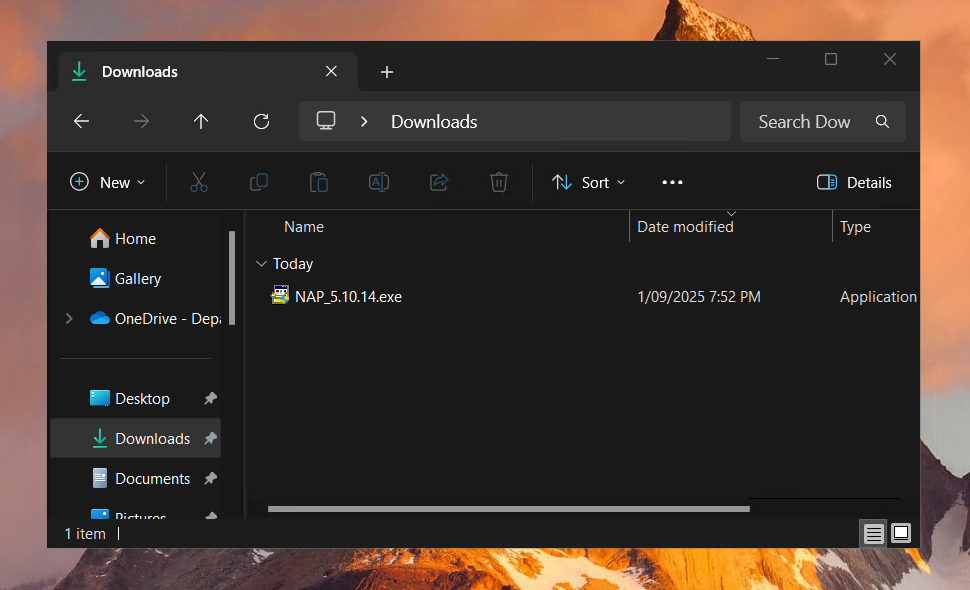
Step 2 Navigate to the locked down browser installer file (NAP 5.10.14) using the system's file explorer. The file by default will be in your Downloads folder.
-
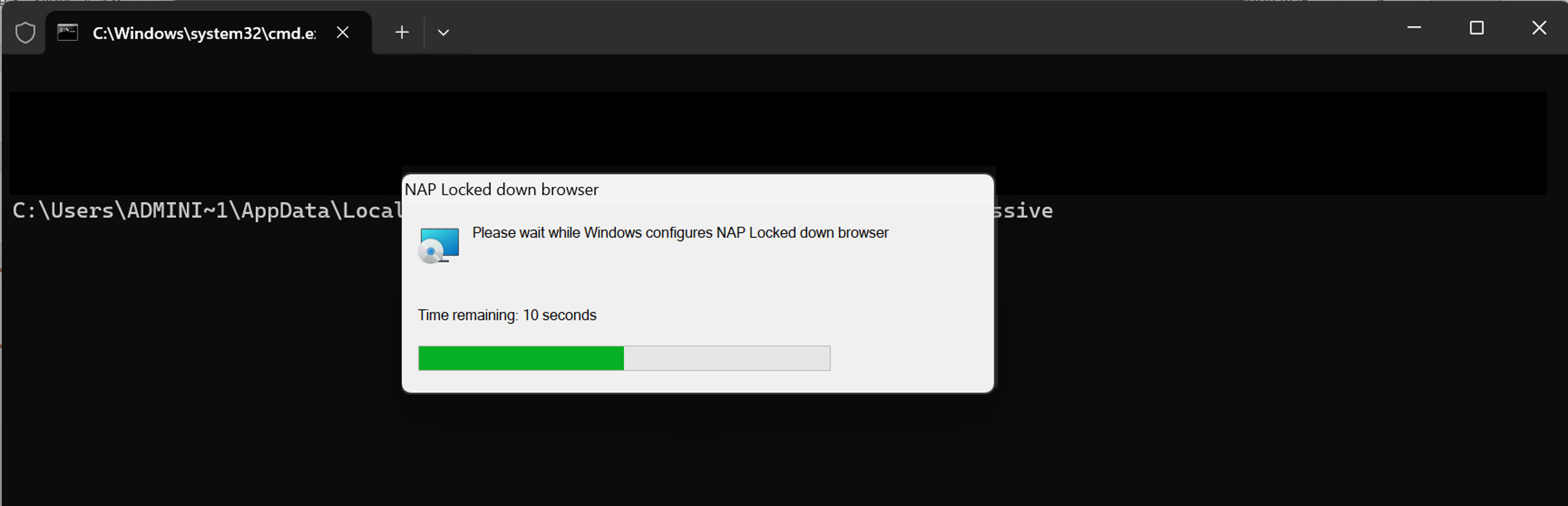
Step 3 Double-click NAP_5.10.14.exe and the installation wizard will launch. Wait for the installation to complete. Do not close any pop ups during this time.
-
Step 4 Check for the green NAP 2026 icon on the Desktop.
If the NAPLAN Locked Down Browser opens successfully (be patient as it takes a minute or so), you are all done and ready for the upcoming NAPLAN online assessments.
How to Install NAPLAN Locked Down Browser on MacOS
Note: NAPLAN locked down browser requires a minimum version of macOS 12 or later.
You can check your version of MacOS by following the instructions
here.
-
Step 1 Open Safari and download the NAPLAN locked down browser here
-
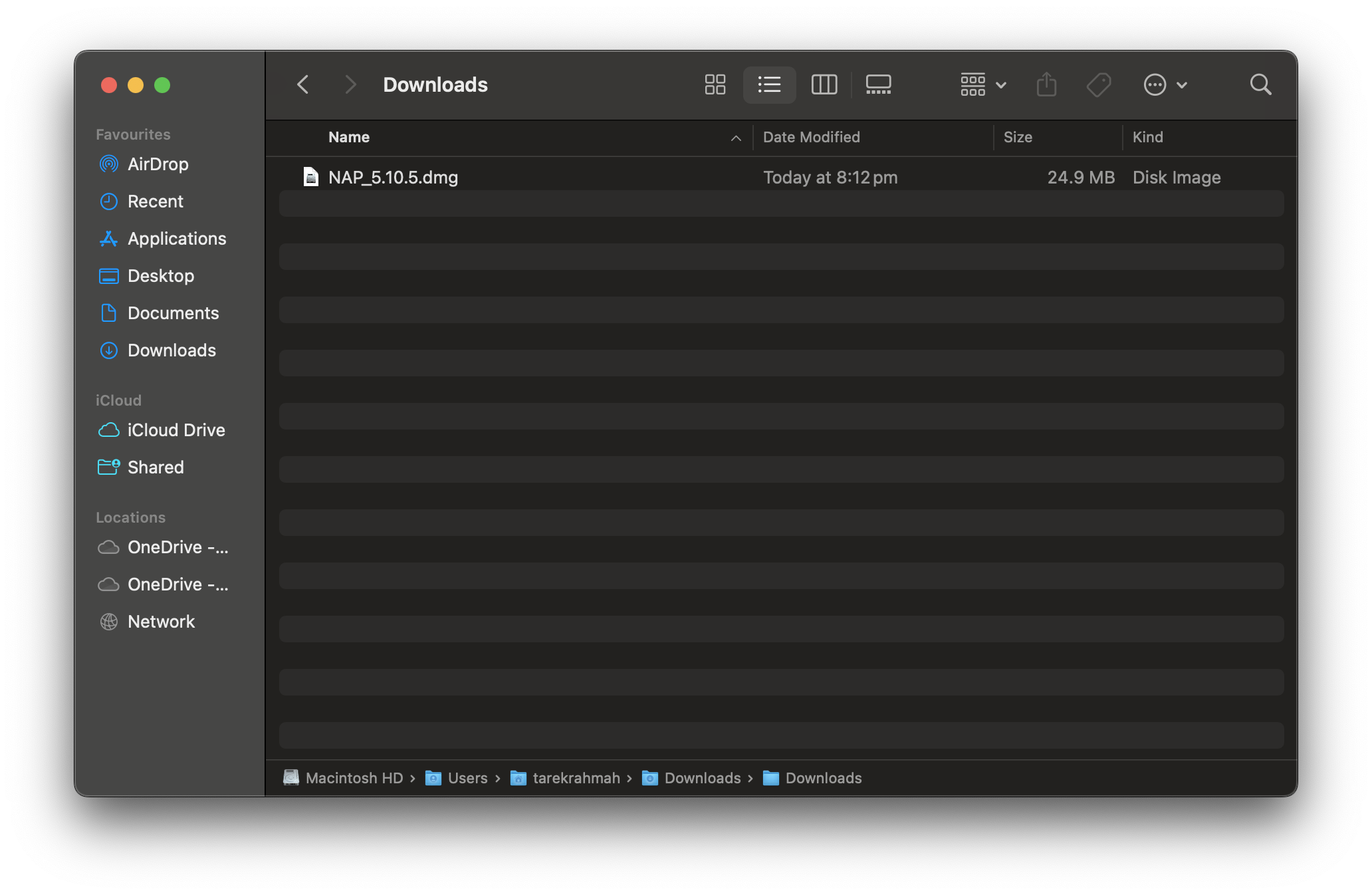
Step 2 Locate your downloaded file called NAP_5.10.5.dmg
-
Step 3 Double-click the file to launch the installer.
-
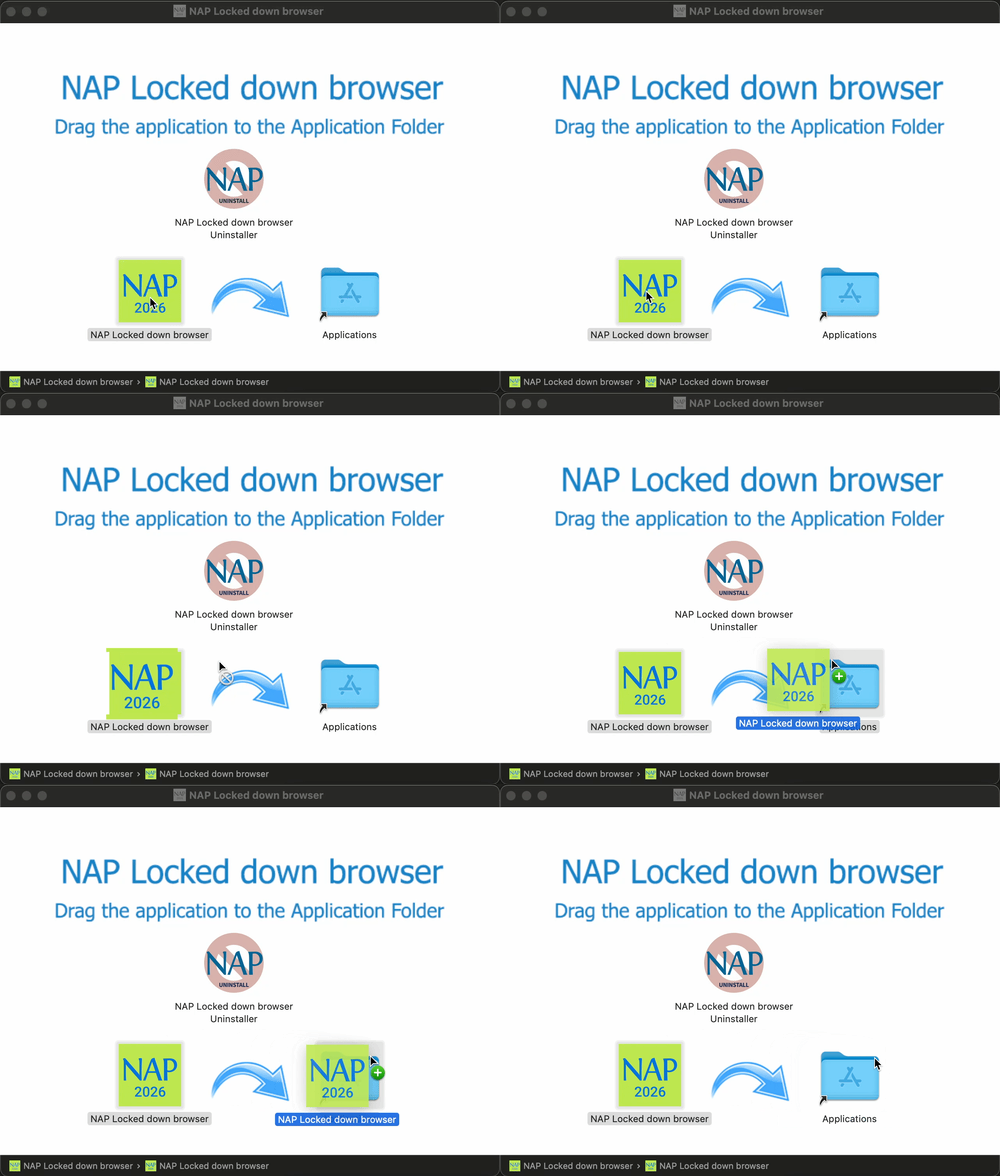
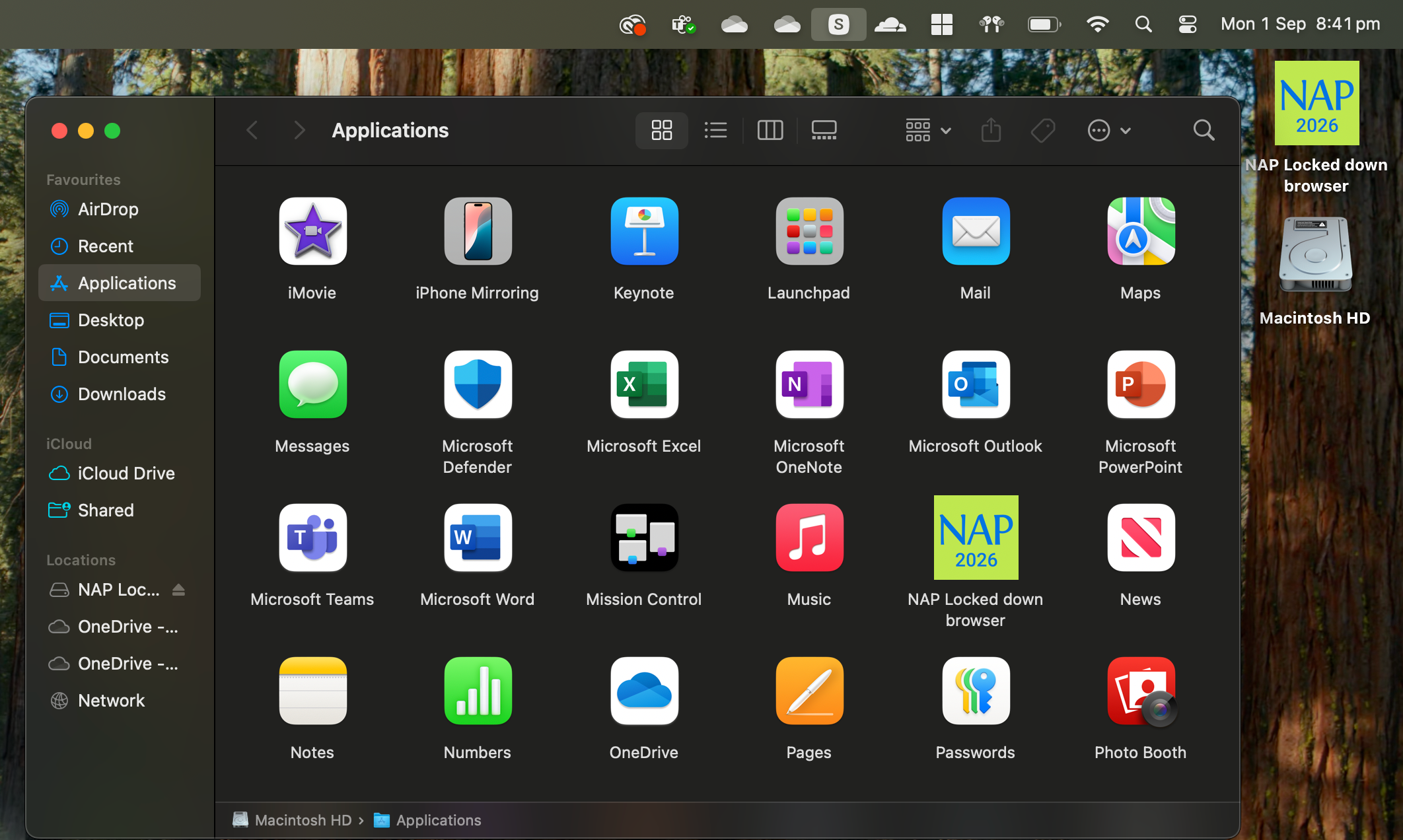
Step 4 Drag the NAP 2026 icon to the Applications folder to install the software
-
Step 5 Confirm the installtion by checking the Desktop or the Applications folder for the green NAP Locked down browser 2026 app icon